Find what’s using the battery
- Open System Settings and click Battery. The Last 24 Hours graph shows your battery level in 15-minute steps (charging is shaded) and how long the screen was on. A steep drop while the screen was off means something ran while you weren’t using the Mac. Last 10 Days shows energy use per day, so you can tell whether today is unusual.
- Open Activity Monitor (Command-Space, type Activity Monitor) and click the Energy tab. Click the Energy Impact column header to put the biggest users at the top. On laptops, the 12 hr Power column shows each app’s average over the past 12 hours, which catches things that ran while you were away.
- Add the Preventing Sleep column if you don’t see it (right-click the column headers). Any app with Yes there can keep the Mac awake.
- At the bottom of the Energy tab, Remaining charge and Time remaining are macOS’s own estimate for the current workload.
Whatever stays at the top of Energy Impact is your answer most of the time. If nothing stands out and the battery still empties quickly, look at the battery’s health (last cause below).
Common causes, and what to do
An app or a browser tab working in the background
Apple notes that even an app you aren’t using may be working in the background and using energy. Video calls, games, builds, streaming and a busy web page all keep the chip working. Browsers run tabs as helper processes, so a busy tab shows up under the browser’s name; in Chrome, the ⋮ menu, then More tools, then Task manager shows which tab.
What to do: close the tab or quit the app. Quit apps you aren’t using, especially ones near the top of 12 hr Power.
Draining fast all of a sudden
A sudden change usually means something new started: an app stuck in a loop, a sync, a download, or a page left open. It shows up in Activity Monitor’s Energy and CPU tabs straight away. If the Mac also feels warm, see Why is my Mac so hot?
Draining after a macOS update
After a software update or upgrade, Spotlight rebuilds its index, and Apple says that can take hours or even days depending on how much is on your Mac. Photos also works through your library in the background, and iCloud may be syncing. In Activity Monitor these show up as mds, mds_stores and mdworker, and Spotlight shows a progress indicator while it indexes (press Command-Space).
What to do: leave the Mac plugged in and awake for a few hours so the work finishes on the charger. Battery life goes back to normal once it’s done.
Draining when closed or not in use
A closed Mac should be asleep, and Apple says a sleeping Mac uses much less energy. If the Last 24 Hours graph falls steeply overnight, the Mac is staying awake or waking up:
- An app is preventing sleep: the Preventing Sleep column in Activity Monitor’s Energy tab names it.
- Wake for network access lets a sleeping Mac wake briefly so others can reach shared services. Apple warns that settings which delay, prevent or interrupt sleep can increase power use. In System Settings, Battery, Options, set it to Only on Power Adapter or Never.
A bright screen, Wi-Fi, Bluetooth and accessories
Apple’s advice is to lower screen brightness to the dimmest comfortable level, and to turn on Slightly dim the display on battery in Battery settings, Options. Wi-Fi and Bluetooth use energy even when nothing is connected, so turn them off when you don’t need them, and disconnect accessories and external drives you aren’t using.
Energy Mode
Low Power Mode reduces energy use to make the battery last longer. Set it in System Settings, Battery, next to Low Power Mode (Energy Mode on some models): Always, Only on Battery, or Only on Power Adapter. On models with High Power Mode, Apple says it lets the fans run faster for demanding work, so leave it for when you’re plugged in.
An older battery
All rechargeable batteries hold less charge as they age, so the same work gives you less time per charge. In System Settings, Battery, Battery Health shows Normal or Service Recommended; click the Info button next to it for Maximum Capacity, the battery’s capacity compared with when it was new. The cycle count is in System Information (hold Option, click the Apple menu, choose System Information, then Power). See battery health and cycle count for what the numbers mean.
What to do: if it says Service Recommended, contact Apple or an Apple Authorized Service Provider about a battery replacement.
Apple silicon and Intel Macs
- Everything above works on both. Battery settings, Activity Monitor’s Energy tab and Low Power Mode are the same tools.
- Intel Macs: if battery or power behavior seems wrong and the steps above don’t explain it, Apple’s fix is to reset the System Management Controller (SMC). Apple silicon Macs don’t need one; a restart does the same job.
- Intel apps on Apple silicon run through Rosetta. If one sits at the top of the Energy tab, check whether the developer has an Apple silicon or Universal version (Activity Monitor’s Kind column shows Apple or Intel).
Keep an eye on it from the menu bar
Battery settings and Activity Monitor explain a drain after it happens. Multimeter keeps the numbers in the menu bar while it’s happening, as small live meters:
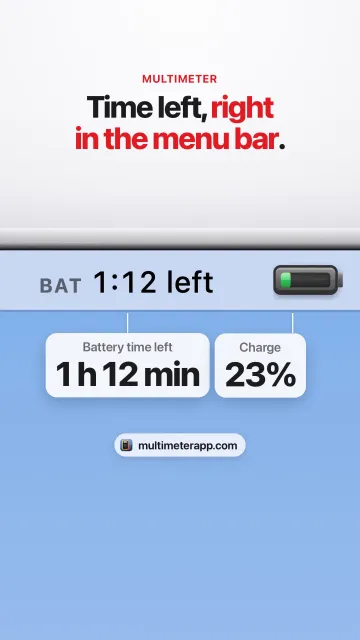
- Battery time left: macOS’s own estimate, the same one Activity Monitor shows, in hours and minutes with the Time Until face. When it drops faster than usual, something just got busy.
- Power draw: how many watts the whole Mac is using, on MacBooks. A jump while you’re idle points to background work. On Intel MacBooks it reads only while on battery, which is when you need it here.
- Battery percentage: with a warning below 20% and critical below 10% by default, and an optional notification when it goes critical.
Multimeter shows totals, not which app is responsible; Activity Monitor answers that. Its built-in faces don’t show battery health or cycle count (those are in System Settings and System Information). Five live meters use about 3% CPU, and they pause while the displays sleep.
How you know it’s fixed
The Last 24 Hours graph falls gently while you work and stays almost flat while the Mac sleeps, nothing unexpected sits at the top of the Energy tab, and the power draw at idle is back to what’s normal for your Mac.
Questions
Why is my MacBook battery draining so fast all of a sudden?
Something new is using energy: a stuck app or tab, a sync, or Spotlight and Photos after an update. Open Activity Monitor, click Energy and sort by Energy Impact; the 12 hr Power column shows what ran while you weren’t looking.
Why is my MacBook battery draining when it’s closed?
The Mac is awake or keeps waking. Check the Preventing Sleep column in Activity Monitor’s Energy tab, set Wake for network access to Only on Power Adapter or Never in Battery settings, Options, and unplug devices charging from the MacBook.
Why is my battery draining fast after a macOS update?
After an update Spotlight re-indexes your Mac, which Apple says can take hours or even days, and Photos and iCloud may be catching up too. Leave the Mac plugged in and awake until it finishes.
Is my MacBook battery bad?
Check System Settings, Battery, Battery Health. Normal means it’s fine; Service Recommended means it holds noticeably less charge than when new or isn’t working normally. The Info button shows Maximum Capacity.
Does Low Power Mode help battery life on a Mac?
Yes. Apple says it reduces energy usage to increase battery life. Set it to Only on Battery in System Settings, Battery.
Can Multimeter show which app is draining my battery?
No. Multimeter shows battery time left, percentage and the whole Mac’s power draw in watts in the menu bar. Activity Monitor’s Energy tab shows which app.
Sources
- Apple: Change Battery settings on Mac (usage history, Battery Health, Options)
- Apple: View energy consumption in Activity Monitor
- Apple: Save energy on your Mac
- Apple: Set sleep and wake settings for your Mac
- Apple: Batteries, maximizing performance
- Apple: About Power Modes on your Mac
- Apple: About Spotlight indexing and search results
- Apple: Find and name people and pets in Photos on Mac
- Apple: About Optimized Battery Charging and Charge Limit on Mac (battery aging)
- Apple: How to reset the SMC of your Mac
- Apple: Using Intel-based apps on a Mac with Apple silicon
- Google: Manage tabs in Chrome (Task Manager)