The one-minute check
- Open Activity Monitor: press Command-Space, type Activity Monitor and press Return. It’s also in Applications, Utilities.
- Click the CPU tab, then click the % CPU column header until the biggest numbers are at the top.
- Watch it for half a minute. Whatever stays near the top is what’s making the heat.
- Click the Energy tab. Energy Impact shows what’s using energy now, and on laptops 12 hr Power shows the average over the past 12 hours, which catches things that ran while you weren’t looking.
Reading the numbers: % CPU counts each processor core as 100%, so one process can show 150% or 400% on a Mac with several cores. A process that stays at 100% or more for minutes is using at least a whole core’s worth of time. At the bottom of the CPU tab, User is the apps you opened and System is macOS itself.
Common causes, and what to do
An app or a browser tab working hard
Video calls, games, exports, builds and streaming video all keep the chip busy, and a busy chip makes heat. So can a single stuck tab you forgot about. Browsers run tabs in separate helper processes, so a busy tab shows up in Activity Monitor under the browser’s name (in Chrome, as Google Chrome Helper). Chrome can show you which tab it is: open the ⋮ menu, then More tools, then Task manager.
What to do: close the tab or quit the app. If it won’t quit, select it in Activity Monitor and click the Stop button (the X in the toolbar). Heat from real work, like an export, goes away when the work is done.
kernel_task near the top of the list
This one looks alarming and isn’t the cause. Apple says kernel_task helps manage CPU temperature by making the CPU less available to processes that are using it intensely, and that it doesn’t cause those conditions itself. A high kernel_task is a sign the Mac is already hot and is cooling itself down.
What to do: leave kernel_task alone and look at what’s under it in the list. Quit that, and Apple says kernel_task reduces its activity on its own as things cool.
Spotlight and Photos catching up after an update
If your MacBook got hot right after a macOS update, a migration or setting up a new Mac, this is the likely reason. Apple says Spotlight indexes after you install a software update or upgrade, and that it can take hours or even days depending on how much is on your Mac. In Activity Monitor it shows up as processes named mds, mds_stores and mdworker. Press Command-Space: while indexing is running, Spotlight shows a progress indicator at the top of its window. Photos also works through your library in the background, finding people and pets, and iCloud Photos may be syncing.
What to do: let it finish. Leave the Mac plugged in, awake and on a hard surface for a few hours. It’s a one-time job; later updates to the index are much faster.
Charging while you work
Charging adds heat of its own, and a laptop on its charger is often also the one doing the heaviest work of the day. Apple’s battery page says that if a device gets hot while charging, take it out of its case first, and that software may hold charging at 80% when the battery is warmer than recommended. Apple also asks you to use only Apple-authorized power adapters.
What to do: take off any case or sleeve while it charges, keep the vents clear, and run the checks above to see whether something is also busy. If nothing else is busy, the extra warmth comes from charging itself.
Blocked vents, soft surfaces and warm rooms
Apple’s advice is to use a Mac laptop on a stable surface with good ventilation, never in bed, on a pillow or under bedding, and to keep things off the keyboard and out of the vents. It also gives the ambient range Mac laptops are made for: 10° to 35° C (50° to 95° F). A hot room, a sunny window or a parked car is outside that, and the Mac has to work harder to stay cool.
What to do: move it to a desk or table and give it space. If it’s hot even when closed, it’s awake: either you’re using it closed with an external display (normal, it’s working), or something is keeping it from sleeping. Activity Monitor’s Energy tab has a Preventing Sleep column that names the app.
An Intel app on an Apple silicon Mac
Apps made only for Intel processors run on Apple silicon through Rosetta, which translates them in the background. Apple recommends the Apple silicon version of an app for the best performance. In Activity Monitor, the Kind column says Apple or Intel for each process (right-click the column headers to add it). In Finder, File > Get Info shows Application (Intel), Application (Universal) or Application (Apple silicon).
What to do: if an Intel-only app sits at the top of the CPU list, check whether the developer has an Apple silicon or Universal version.
Things that start on their own
Apps can open at login or keep working in the background, checking for updates or syncing, without a window on screen. That’s often the answer to “why is my Mac hot when I’m not using it”.
What to do: open System Settings, General, Login Items & Extensions. Remove what you don’t need from Open at Login, and review the apps allowed to run in the background. The Energy tab’s 12 hr Power column (on laptops) shows what’s been using energy while you were away.
Hot with nothing running
If Activity Monitor shows nothing busy, the Mac is well ventilated, and it still runs hot with the fans going, Apple’s steps are: close and reopen the lid or restart the Mac. On an Intel Mac, also reset the System Management Controller (SMC); Macs with Apple silicon reset it automatically when they restart. If it keeps happening, contact Apple Support.
Apple silicon and Intel Macs
- MacBook Air with Apple silicon has no fan. When it gets hot it can’t get louder, so macOS holds performance back instead until it cools. Thermal pressure (below) is the number that shows that happening.
- MacBook Pro, Mac mini, iMac and Mac Studio have fans, so heat usually shows up as fan noise first. See Why is my MacBook fan so loud?
- The SMC reset is for Intel Macs only. Apple silicon Macs don’t need one.
- Rosetta only exists on Apple silicon. On an Intel Mac, apps run without translation.
What about the temperature?
macOS doesn’t show a temperature anywhere, and you don’t need one to find the cause. Apple points out that apps which show temperatures read sensors inside the Mac, not the case you touch, which is much cooler, and says not to use them to diagnose hardware problems.
What macOS does report is thermal pressure, the state it uses to decide when to hold performance back: Nominal (within normal limits), Fair (slightly elevated), Serious (high) and Critical (significantly affecting performance; the Mac needs to cool down). Serious or Critical during light use is worth looking into. Nominal under a heavy export means the Mac is coping fine, however warm it feels.
Keep an eye on it from the menu bar
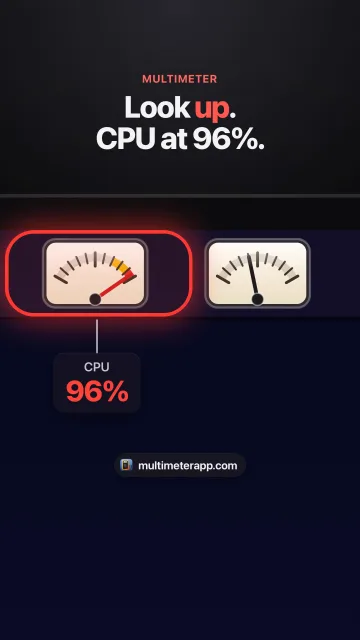
Activity Monitor tells you which app. It doesn’t stay on screen, so most people find out about heat when the fans get loud or the keyboard gets warm. Multimeter puts the numbers in the menu bar instead, as small live meters:
- CPU: total use across all cores, updated every 3 seconds on power. It turns yellow above 70% and red above 90% by default.
- Thermal pressure: Nominal, Fair, Serious or Critical, the state above. It’s a state, not degrees; Multimeter doesn’t read temperature sensors. It changes the moment macOS does, and warns at Serious and Critical.
- Fan speed: RPM, averaged across your Mac’s fans. Read only, on Macs that have fans, in the direct download version from this site (the Mac App Store doesn’t allow reading the fans). Set your own warning level, like 4,000 rpm.
- Power draw: how many watts the whole Mac is using, on MacBooks. On Intel MacBooks it only reads while on battery. A jump while you’re idle means something in the background just got busy.
Each meter turns yellow at its warning level and red at critical, and you can turn on a notification per meter so you hear about it when it goes critical. Five live meters use about 3% CPU, and they pause while the displays sleep.
How you know it’s fixed
Nothing you don’t recognize sits at the top of Activity Monitor’s CPU list, the fans (if your Mac has them) spin down, and thermal pressure is back to Nominal.
Questions
Is it bad if my Mac gets hot?
Warm is normal: Apple says Mac laptops get warm in everyday use, and macOS protects the chip by slowing it down when it has to. Hot while you are doing very little, or hot with the fans always running, is worth checking in Activity Monitor.
Why is my Mac hot when I’m not using it?
Something is working in the background: Spotlight or Photos after an update, a sync, an app that opens at login, or a tab left playing. Activity Monitor’s CPU tab shows what is busy now, and the Energy tab’s 12 hr Power column shows what used energy while you were away.
Why is my MacBook hot when charging?
Charging adds heat, and a charging laptop is often also busy. Take it out of any case, keep the vents clear, and check Activity Monitor for anything working hard. Apple says software may hold charging at 80% when the battery is warmer than recommended.
Why is my MacBook hot even when it’s closed?
A closed Mac that is hot is awake. Either it is driving an external display, or an app is preventing sleep: Activity Monitor’s Energy tab has a Preventing Sleep column that names it.
Why did my MacBook start getting hot after an update?
After a software update or upgrade, Spotlight rebuilds its index, and Apple says that can take hours or even days. Press Command-Space to see whether it is still indexing, and leave the Mac plugged in until it finishes.
What is kernel_task, and why is it using so much CPU?
It is part of macOS. Apple says it manages CPU temperature by making the CPU less available to processes using it intensely. It is the Mac cooling itself, not the cause: quit whatever is under it in the list.
Can Multimeter show my Mac’s temperature?
No. Multimeter shows thermal pressure, the Nominal, Fair, Serious or Critical state macOS reports, plus CPU, fan speed and power draw. It does not read temperature sensors.
Sources
- Apple: Keep your Mac laptop within acceptable operating temperatures
- Apple: If kernel_task is using a large percentage of your Mac CPU
- Apple: About Spotlight indexing and search results
- Apple: Find and name people and pets in Photos on Mac
- Apple: View CPU activity in Activity Monitor
- Apple: View energy consumption in Activity Monitor
- Apple: Batteries, maximizing performance
- Apple: Using Intel-based apps on a Mac with Apple silicon
- Apple: Change Login Items & Extensions settings
- Apple: How to reset the SMC of your Mac
- Apple Newsroom: the fanless MacBook Air
- Apple Developer: ProcessInfo.ThermalState
- Google: Manage tabs in Chrome (Task Manager)
- The Eclectic Light Company: % CPU in Activity Monitor
- The Eclectic Light Company: mds_stores and mdworker
- MacRumors: the Kind column in Activity Monitor