The three-minute check
- Signal and band. Hold Option and click the Wi-Fi icon in the menu bar. Under your network you’ll see lines like RSSI, Noise, Tx Rate and Channel. RSSI is the signal in dBm (closer to 0 is stronger), Noise is the background interference, and Channel says which band you’re on, for example “153 (5GHz, 80MHz)”. The same details are in System Information (hold Option, choose System Information from the Apple menu, then Network, Wi-Fi).
- Speed. Open Terminal and run
networkQuality. After about 20 seconds it prints your download and upload capacity, and a responsiveness rating of Low, Medium or High: how well the connection holds up while it’s busy. - What’s using it. Open Activity Monitor and click Network. The graph at the bottom shows data received and sent per second; click the Rcvd Bytes or Sent Bytes column to put the busiest processes at the top.
- Apple’s own check. Click the Wi-Fi icon and look for Wi-Fi Recommendations; if it’s there, choose it. For a full check, hold Option, click the Wi-Fi icon and choose Open Wireless Diagnostics. It lists issues it finds with possible fixes, and doesn’t change your network settings.
Tx Rate is the link speed the Mac and router agreed on, not your internet speed. Real downloads run well below it, but if it drops to a small number, the Wi-Fi link is the bottleneck.
Common causes, and what to do
A weak signal: distance, walls and metal
Apple lists slow connections with a weak signal as a sign of interference and distance. Walls cost signal differently: Apple rates wood, glass and most synthetics low, water, brick and marble medium, plaster and concrete high, and metal very high. A Mac keeps the access point it’s on until the signal falls to -75 dBm before it looks for a stronger one, so an RSSI in the -70s is weak by Apple’s own measure.
What to do: move closer to the router, or move the router into the open, up off the floor and away from metal. In a big house, a mesh system or a second access point puts a stronger signal where you work. Hold Option and click the Wi-Fi icon as you walk around: RSSI updates live.
Stuck on 2.4 GHz, or a crowded channel
Bluetooth and many Wi-Fi devices share the 2.4 GHz band, and Apple says moving Wi-Fi devices that support 5 GHz onto it frees up the crowded band. Apple also lists power cables, microwave ovens, fluorescent lights, wireless video cameras and cordless phones as interference, plus USB 3 and Thunderbolt 3 devices, hubs and cables close to the Mac. If the Channel line says 2.4GHz while you’re near the router, or Noise is high, this is likely it.
What to do: Apple recommends one network name for all of the router’s bands, so devices can pick the best one. If your router has separate names, the Mac may be joining the 2.4 GHz one. Apple’s other router settings: channel on Auto, 20 MHz channel width on 2.4 GHz, all radio modes on, automatic firmware updates. Keep USB and Thunderbolt hubs and drives off the top of the Mac and use shielded cables.
Something on your Mac is using the connection
iCloud Photos uploading a new batch of videos, iCloud Drive, a Time Machine backup to a network drive, a cloud backup app or a large update all share the same connection as your browser. A full upload can make downloads and video calls feel slow too. Activity Monitor’s Network tab, sorted by Sent Bytes or Rcvd Bytes, names the process. For iCloud Photos, the bottom of Photos’ All Photos view shows its upload status.
What to do: let a one-time upload finish overnight, or pause the app doing it. If one app always uses the connection while you work, check its settings for a bandwidth limit or a schedule.
Too many devices on a busy network
Your Mac shares the router with everything else in the house. Apple’s description of a Low responsiveness rating: when other devices on the network are busy, such as downloading a movie or backing up photos, some app connections may be unreliable, including FaceTime calls and gaming. Apple’s network tools page says a Low rating with adequate capacity often points to bufferbloat, a common cause of a slow, laggy connection even when the basics look fine.
What to do: run networkQuality once when the house is quiet and once when it’s busy. If the download number stays high but responsiveness drops to Low, the router is queueing too much traffic. Apple notes that some routers offer Smart Queue Management (SQM) to keep responsiveness high.
A VPN or iCloud Private Relay
A VPN sends all your traffic through its own server first, so the connection can only be as fast as that server and the trip to it. Apple lists VPN and other security software that monitors network connections as something to check when a Mac has internet trouble. iCloud Private Relay, part of iCloud+, also routes Safari through relays, and Apple says some speed test results may appear lower with it on, because it uses a single connection where speed tests often use several.
What to do: disconnect the VPN and test again. To compare without Private Relay on one network, open System Settings, Wi-Fi, click Details next to the network and turn off Limit IP address tracking; Apple says that turns Private Relay off for that network.
Slow all of a sudden, or right after an update
Apple’s steps for a Mac that has trouble getting online: restart the Mac (it renews the address the network gave it), install macOS updates, check VPN and security software, install the router’s latest firmware and restart the router, then try Wi-Fi Recommendations and Wireless Diagnostics. After a macOS update, also look in Activity Monitor’s Network tab: Photos and iCloud often catch up on a backlog, and a VPN or security app may need its own update for the new macOS.
What to do: work down that list. If another network is fast, or you aren’t sure, Apple suggests checking with your internet provider for an outage.
Pages slow to start loading
If networkQuality shows good numbers but each new site pauses before it starts to load, the delay may be in looking up the site’s address (DNS). Your Mac uses the DNS servers your router hands out unless you set others.
What to do: restart the router first. To try other DNS servers, open System Settings, Network, click your Wi-Fi service, click Details, then DNS, and add them with the + button. Remove them again to go back to the router’s.
Private Wi-Fi address
Macs can use a private Wi-Fi address for each network. Apple says it usually doesn’t affect using Wi-Fi, but it can cause trouble reaching the internet or network resources on some networks. A router also sees a new private address as a new device, so device-based settings on the router, like priority or parental controls, may no longer match your Mac.
What to do: install software updates first. If the problem stays, open System Settings, Wi-Fi, click Details next to the network and set Private Wi-Fi address to Fixed or Off for that network.
The internet connection itself
If the Mac is fast over Ethernet or on another network but slow on yours at every distance, or every device in the house is slow, the problem is upstream. Restart the modem and router by unplugging them for a couple of minutes, and if it stays slow, check with your internet provider.
Why is my MacBook slower than my iPhone?
Before you blame the Mac, make sure it’s a fair test. Common reasons they differ in the same room:
- The iPhone may be using cellular too. Connectivity Assist (it replaced Wi-Fi Assist) uses cellular data when Wi-Fi is slow or unusable. Turn it off in Settings, Wi-Fi on the iPhone before comparing.
- They hold on to access points differently. Apple’s roaming table: a Mac stays on its current access point until the signal falls to -75 dBm and then wants one 12 dB stronger, while an iPhone starts looking at -70 dBm. In a home with a mesh system, the Mac can stay on a farther node after you move rooms. Turning Wi-Fi off and on makes it choose again.
- They may be on different bands. Compare the Mac’s Channel line with the network the iPhone joined. Wi-Fi 6E (6 GHz) works on MacBook Pro from 2023, MacBook Air with M3 or later, MacBook Neo, and iMac, Mac mini, Mac Studio and Mac Pro from 2023; older Macs stay on 2.4 or 5 GHz. A router that gives each band its own name can leave the two devices on different ones.
- The Mac is doing more. It may be uploading photos or a backup that the phone isn’t. Activity Monitor’s Network tab shows it.
- Different privacy settings. A VPN or Private Relay on one and not the other changes the result.
- Older Wi-Fi in the Mac. System Information’s PHY Mode line shows the Wi-Fi standard in use: 802.11ac is Wi-Fi 5, 802.11ax is Wi-Fi 6 or 6E. A newer iPhone can simply have the faster radio.
For a like-for-like test, stand in the same spot, close other apps, and run networkQuality on the Mac and a speed test on the iPhone back to back.
Keep an eye on it from the menu bar
The tools above answer the question when you sit down to ask it. Multimeter can keep the numbers on screen, with a clear limit on what each one measures:
- The Network meter (built in, every version) shows how many bytes per second are coming in or going out across your Wi-Fi, Ethernet and cellular connections, every 3 seconds on power and about every 6 on battery. VPN tunnels are left out because their traffic is already counted on Wi-Fi or Ethernet. It measures traffic, not signal and not your connection’s maximum: an upload meter that stays busy while you’re doing nothing is the backup or photo upload eating your connection. It shows bytes, like 12 MB/s, while speed tests show megabits, so 12 MB/s is about 96 Mbps.
- Wi-Fi signal strength: a recipe that puts RSSI in dBm in the menu bar, from a tiny helper you build once with Apple’s Wi-Fi framework, turning yellow at -70 dBm and red at -80. It uses the Script source, which is in the direct download version only, not the Mac App Store version.
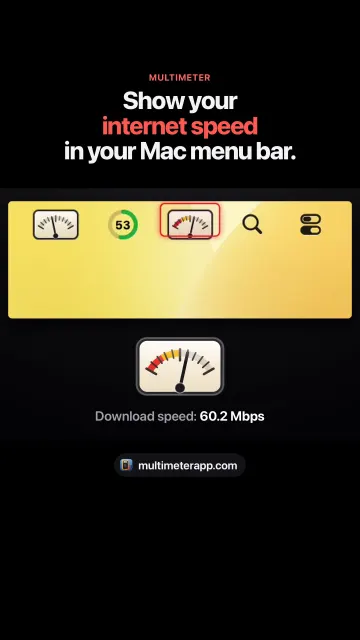
- Internet speed test: a recipe that runs
networkQualityonce an hour in the background and shows the latest download speed on a File meter, which works in every version.
Multimeter doesn’t change any network settings and can’t make Wi-Fi faster. Five live meters use about 3% CPU, and they pause while the displays sleep.
How you know it’s fixed
RSSI is well above -70 dBm, the Channel line shows 5 or 6 GHz, nothing unexpected sits at the top of Activity Monitor’s Network tab, and networkQuality shows close to what you pay for with Medium or High responsiveness.
Questions
Why is my Mac’s internet so slow all of a sudden?
Usually something started using the connection, like iCloud Photos, a backup or an update, or the Mac moved to a weaker signal or the 2.4 GHz band. Check Activity Monitor’s Network tab, then hold Option and click the Wi-Fi icon to see RSSI and Channel.
Why is my Mac internet slow after an update?
Apple’s steps: restart the Mac, install any further updates, check VPN and security software, update and restart the router, then run Wi-Fi Recommendations or Wireless Diagnostics. Photos and iCloud may also be catching up in the background.
Why is my MacBook internet slower than my iPhone?
The iPhone may be adding cellular through Connectivity Assist, may be on a different band, or may have roamed to a closer access point: a Mac keeps its access point until the signal falls to -75 dBm, an iPhone looks at -70. The Mac may also be uploading in the background.
Why is my Mac’s Wi-Fi so bad in some rooms?
Distance and walls. Apple rates concrete and plaster high for interference and metal very high. Hold Option and click the Wi-Fi icon while you walk around to see RSSI change, and add an access point or mesh node where it falls into the -70s.
How do I test my internet speed on a Mac without an app?
Open Terminal and run networkQuality. It is built into macOS Monterey and later, and reports download and upload capacity plus a Low, Medium or High responsiveness rating.
Does iCloud Private Relay slow down the internet?
Apple says some speed test measurements may appear lower with Private Relay on, because it uses a single connection. Turn off Limit IP address tracking in that network’s Wi-Fi Details to compare.
Can Multimeter make my Wi-Fi faster?
No. Its Network meter shows how much data is moving right now, and two recipes add Wi-Fi signal strength and an hourly speed test result to the menu bar. The fixes are in your router and settings.
Sources
- Apple: Use Wireless Diagnostics on your Mac
- Apple: If your Mac isn’t connecting to the internet over Wi-Fi
- Apple: Solve internet connection problems on Mac
- Apple: Test Wi-Fi networks with Apple Network Responsiveness
- Apple: Use network tools to test connections (networkQuality, bufferbloat)
- Apple: Resolve Wi-Fi and Bluetooth issues caused by wireless interference
- Apple: Recommended settings for Wi-Fi routers and access points
- Apple: Wi-Fi roaming support in Apple devices
- Apple: Use Wi-Fi 6E or Wi-Fi 7 networks with Apple devices
- Apple: About Connectivity Assist
- Apple: About iCloud Private Relay
- Apple: Change Wi-Fi settings on Mac (Details options)
- Apple: Use a private Wi-Fi address on Mac
- Apple: Use private Wi-Fi addresses on Apple devices
- Apple: Change DNS settings on Mac
- Apple: View network activity in Activity Monitor
- Apple: If your iCloud Photos aren’t syncing
- Macworld: the Option-click Wi-Fi menu (Tx Rate, Channel, live values)
- University of Michigan: RSSI in the Option-click Wi-Fi menu