What kernel_task is
Every Mac runs one kernel, the part of macOS between the apps and the hardware: it schedules work on the processor, hands out memory and runs the drivers. Activity Monitor lists processes, so it shows the kernel as one, named kernel_task. In Apple’s published macOS kernel source it’s process 0, the first one created at startup. That’s why its process ID is 0, and why it sometimes appears as kernel_task (0).
It’s always there, owned by root, and it’s normal to see it near the top of the CPU list now and then. It’s worth a look when it stays high for minutes, usually with loud fans or a Mac that has slowed down.
Why kernel_task uses so much CPU
When the chip gets too warm, macOS has to take work away from it. Giving processor time to kernel_task leaves less for the app that’s making the heat. Apple’s page says you may notice more fan activity at the same time. The high number is the brake, not the engine. What sets it off:
A busy app or browser tab
The usual cause. Video calls, games, exports, builds, a stuck tab or a runaway background process keep the chip busy until it’s hot. It’s normally the next thing under kernel_task in the CPU list.
A hot room, a soft surface or blocked vents
Apple says Mac laptops are made for rooms between 10° and 35° C (50° to 95° F), on a stable surface with good ventilation, never on a bed, a pillow or under bedding, with nothing over the keyboard or in the vents. Outside that, it takes much less work to get hot.
Charging, and devices on the same side
Charging adds heat of its own. On Intel MacBook Pro models with USB-C ports on both sides, owners reported high kernel_task when charging on the left, especially with other devices plugged in on that side; The Eclectic Light Company traced it to a thermal sensor by the left ports. Charging from a right-hand port is the common workaround. Apple hasn’t published anything about it.
External displays and accessories
Driving an external display keeps the graphics busy and, with the lid closed, the Mac awake, so it runs warmer than it would on its own.
Right after a macOS update
Apple says Spotlight indexes after a software update or upgrade, and that it can take hours or even days. That shows up as mds, mds_stores and mdworker in Activity Monitor, and the extra heat can bring kernel_task up with it. It settles once indexing finishes.
Why kernel_task uses so much memory
In Activity Monitor’s Memory tab, kernel_task is often one of the biggest entries, sometimes several gigabytes. That’s usually normal. Its figure includes the kernel’s own memory. Apple’s developer documentation says wired memory holds kernel code and data structures that must never be paged out to disk, that the kernel also needs it for virtual memory, buffer caches and drivers, and that it grows with the amount of memory in the Mac. Apps add to it too: every thread an app creates takes a little wired memory for the kernel.
The number to watch is Memory Pressure at the bottom of the Memory tab, not the size of any one process. Green means macOS is using memory efficiently. If it’s yellow or red and kernel_task keeps growing for days, restart the Mac. If it comes back, look at anything you added recently that installs drivers or system extensions (System Settings, General, Login Items & Extensions).
How to check what’s going on
- Open Activity Monitor: press Command-Space, type Activity Monitor and press Return.
- Click CPU, then click the % CPU column header until the biggest numbers are at the top. If
kernel_taskis high, look at the next few entries: that’s what’s making the heat. - Click Energy. Energy Impact shows what’s using energy now, and on laptops 12 hr Power shows the past 12 hours. The Preventing Sleep column names any app keeping a closed Mac awake.
- If it was the memory number that worried you, click Memory and look at the Memory Pressure graph.
- For the thermal state, type
pmset -g thermin Terminal. Its manual says it shows thermal conditions that affect CPU speed and isn’t available on every Mac. “No thermal warning level has been recorded” means there hasn’t been one.
% CPU counts each core as 100%, so kernel_task can show 200% or more on a Mac with several cores. That’s time macOS is keeping away from other apps, not extra work.
What to do
- Quit what’s under it. Close the tab or quit the app; if it won’t quit, select it in Activity Monitor and click the Stop button (the X in the toolbar). Heat from real work, like an export, ends when the work does.
- Give it air. A desk or table, nothing on the keyboard, vents clear, out of the sun.
- Charge on the other side if it’s an Intel MacBook Pro with ports on both sides and it only happens while charging.
- Let indexing finish after an update: plugged in and awake for a few hours.
- Hot with nothing running? Apple’s steps: close and reopen the lid, or restart. On an Intel Mac, reset the System Management Controller (SMC). If it keeps happening, contact Apple Support.
What not to do
- Don’t try to quit or kill it. It can’t be quit: it’s macOS itself, and stopping the kernel would mean stopping the Mac.
- Don’t try to stop it doing its job. Some people have tried to keep
kernel_taskfrom throttling. The Eclectic Light Company compares that to stopping someone who’s sweating in the heat from drinking water: it only makes things worse. - Don’t buy a cleaner or a “CPU fix”. Nothing needs cleaning; the cause is a busy app or heat, and Activity Monitor finds it.
- Don’t diagnose with a temperature app. Apple says apps that show temperatures read sensors inside the Mac, not the case, and not to use them to diagnose hardware problems.
Apple silicon and Intel Macs
- Both have kernel_task. Apple’s page applies to every Mac, and Activity Monitor works the same way on both.
- The left-side charging reports are about Intel MacBook Pro models, from 2020.
- MacBook Air with Apple silicon has no fan, so it can’t get louder when it heats up; it slows down instead. A slowdown during a long export is often just that.
- The SMC reset is for Intel Macs only. Apple says Macs with Apple silicon reset it automatically when they restart. Intel Macs with and without the T2 chip each have their own steps on Apple’s page.
Keep an eye on it from the menu bar
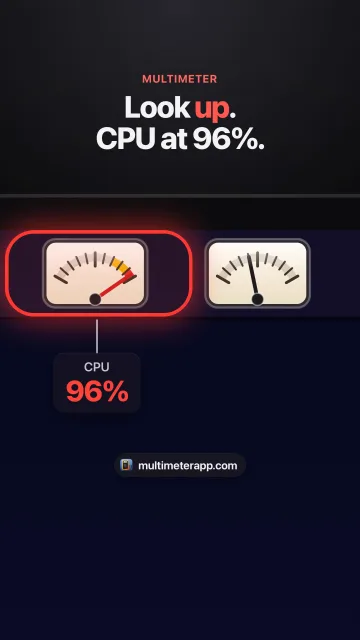
Activity Monitor shows kernel_task once you open it. Multimeter keeps the signs that lead up to it in the menu bar, as small live meters:
- CPU: total use across all cores, every 3 seconds on power. Yellow above 70%, red above 90% by default.
- Thermal pressure: Nominal, Fair, Serious or Critical, the state macOS uses to decide when to hold performance back. It’s a state, not degrees; Multimeter doesn’t read temperature sensors. It warns at Serious and Critical.
- Fan speed: RPM, on Macs that have fans, in the direct download version from this site (the Mac App Store doesn’t allow reading the fans). Set your own warning level.
- Memory: Memory Used as a percent of your Mac’s memory. It doesn’t show memory pressure; Activity Monitor’s Memory tab has that.
Multimeter shows totals, not which process, so it tells you when to open Activity Monitor rather than replacing it. Each meter can send a notification when it goes critical. Five live meters use about 3% CPU, and they pause while the displays sleep.
How you know it’s fixed
Once the busy app is gone and the Mac has cooled, kernel_task drops back down the CPU list on its own, the fans (if your Mac has them) spin down, and thermal pressure is back to Nominal.
Questions
What is kernel_task (0)?
The same thing: kernel_task with its process ID, 0. In Apple’s macOS kernel source it is process 0, the first process created at startup, and it stands for the kernel itself.
Why is kernel_task using so much memory?
Its figure includes the kernel’s wired memory, which Apple says holds kernel code and data structures that can’t be paged out, plus memory for caches and drivers. It grows with the Mac’s memory and with what’s open. Watch Memory Pressure instead: green is fine.
Can I quit kernel_task?
No. It is the kernel, the core of macOS, so it can’t be quit. Quit the busy app under it in Activity Monitor instead, and Apple says kernel_task reduces its activity as the CPU cools.
Is kernel_task a virus?
No. It is part of macOS, process ID 0, owned by root, on every Mac. High CPU from it is the Mac cooling itself down.
Why is kernel_task high when my Mac isn’t hot?
Apple says it responds to conditions that make the CPU too hot even if the Mac doesn’t feel hot to you. The sensors are inside, near the chip, and Apple says the case is much cooler.
Why is kernel_task high while charging?
Charging adds heat. On Intel MacBook Pro models with ports on both sides, owners reported it mostly when charging on the left; charging on the right is the usual workaround.
Can Multimeter show kernel_task?
No. Multimeter shows totals in the menu bar (CPU, thermal pressure, fan speed and memory) so you notice heat early. Activity Monitor shows which process.
Sources
- Apple: If kernel_task is using a large percentage of your Mac CPU
- Apple: Keep your Mac laptop within acceptable operating temperatures
- Apple: Reset the SMC of your Mac
- Apple: View CPU activity in Activity Monitor
- Apple: View memory usage in Activity Monitor
- Apple: View energy consumption in Activity Monitor
- Apple Developer: About the virtual memory system (wired memory)
- Apple open source: XNU kernel, bsd_init.c (process 0, kernel_task)
- Apple: About Spotlight indexing and search results
- Apple Newsroom: the fanless MacBook Air
- Apple Developer: ProcessInfo.ThermalState
- The Eclectic Light Company: Why is kernel_task eating my CPU? (left-side charging)
- The Eclectic Light Company: % CPU in Activity Monitor